
Enhance Your TV Viewing with Immersive Ambient Lighting
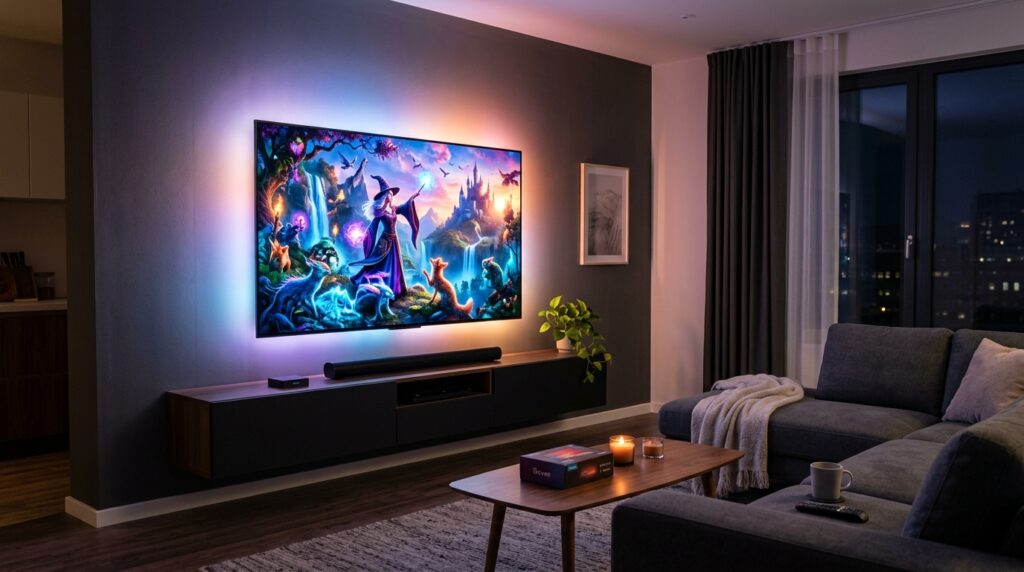
If you want to take your movie nights and gaming sessions to the next level, syncing ambient backlights with your TV is one of the most cost-effective upgrades you can make. The Govee TV Backlight system (such as the Govee DreamView or Immersion) uses a camera mounted on top of your TV to match the colors on your screen in real-time. Here is a complete step-by-step guide to installing and calibrating your Govee TV lights.
Step 1: Mount the LED Light Strips
- Clean the back of your TV with an alcohol wipe to ensure the adhesive sticks properly.
- Start from the bottom corner and stick the LED strip around the edge of the TV, keeping about 2–3 inches of distance from the outer edge.
- Use the provided reinforcement clips on the corners to prevent the strip from peeling off.
Step 2: Install the Camera
Mount the camera in the exact center of either the top or bottom of your TV screen. The top mount is recommended for the best viewing angle. Ensure the camera is pointing slightly downward toward the screen.
Step 3: Connect to the Govee Home App
- Download the Govee Home App on your smartphone and create an account.
- Turn on your phone’s Bluetooth and Location Services.
- Plug in the Govee control box and turn on the lights.
- Open the app, tap the “+” icon, and select your Govee model to pair it.
Step 4: Calibration Process
To calibrate the camera to read your screen colors accurately:
- Stick the provided orange foam calibration blocks onto the corners and edges of your TV screen as shown in the app wizard.
- In the Govee app, navigate to Calibration Settings.
- Drag the calibration points on the app screen to match the positions of the orange foam blocks on your TV.
- Save the settings and peel the orange blocks off your screen.
Step 5: Optimize Your Settings
For the best immersive experience, configure these settings in the app:
- Mode: Set to Video (not Music or Color).
- Part: Select All for smooth color transitions.
- Relative Brightness: Set to 20-30% to keep the colors vibrant without washing out dark scenes.
- Saturation: Keep this around 15-20% for natural-looking colors.
Turn off the living room lights, play a colorful movie trailer, and enjoy your new immersive home theater setup!